PuTTY is just a single executable file named putty.exe. Put it into a directory on your computer and create an icon on your desktop
Step 1
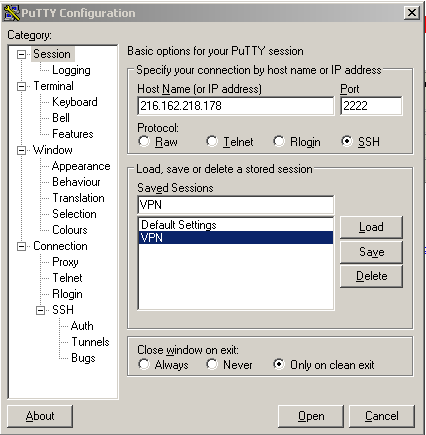
Double click on your PuTTY icon and fill in as shown
Step 2
Step 3
Press the Save button and save the connection information. In the future you should be able to open PuTTY, highlight the saved information and press the Load button, and then Open a session.
Step 4
When prompted to login log in as "oracle" all lower case. The password is "Or4cl3Class" and is case sensitive.
Step 5
At the Linux prompt type: ssh 192.168.1.120
Step 6
To the question: "Are you sure you want to keep connecting" answer: yes
Step 7
To the pwd prompt answer: oracle1
Step 8
Start sqlplus and log in: sqlplus <your_last_name>/<your_first_name>